




Ever wondered what if your important contacts get accidentally deleted from your iPhone? Such sudden contact loss can be distressing, especially if they include important personal or business connections. Whether you’ve lost contacts accidentally or after recent software updates, there are several iPhone data recovery methods available that you can try to get them back.
In this comprehensive guide on how to retrieve deleted contacts on iPhone, we’ve explored various methods ranging from restoring through iCloud to using backups and third-party tools. These methods will definitely help you retrieve deleted contacts on an iPhone with ease.
Why Contacts Get Deleted on an iPhone?
If you’re experiencing instances like the deletion of contacts from your iPhone, try finding the exact reason for that contact loss. Some main reasons why contacts disappear include:
- Accidental Deletion: You may have unintentionally removed contacts from your iPhone while editing, cleaning up duplicates, or deleting entries without realising important information was selected.
- iCloud Sync Errors: Synchronisation issues between devices can overwrite or remove contacts when iCloud fails, conflicts occur, or settings are toggled improperly.
- Software Updates (like an iOS upgrade): Updating iOS can also cause temporary data syncing problems, account sign-outs, or unexpected glitches that make contacts disappear.
- Account Removal (Gmail, Outlook, etc.): When you remove an email account synced with contacts from your iPhone, it deletes all associated entries (including contacts) from it.
- Device Reset or Factory Restore: Erasing all content and settings without restoring a proper backup permanently removes contacts and other personal data.
How do I Recover Deleted Contacts on an iPhone? [Quick Methods]
Now that you are familiar with different reasons why contacts disappear on an iPhone, it’s time to apply adequate recovery workarounds to get those lost contacts back. Go with the following methods one by one to get your lost contacts back:
Method 01: Recover Deleted Contacts from iCloud.com
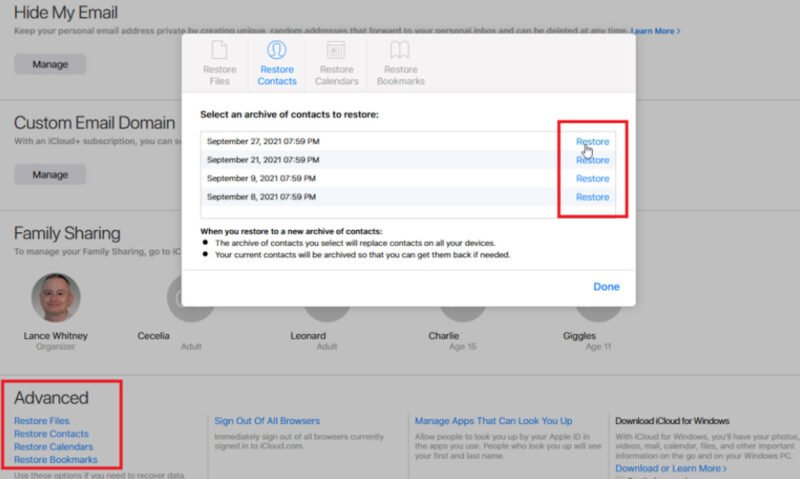
If you’ve synced your iPhone with iCloud, this is the simplest and safest way to recover your lost contacts. It allows you to restore a previous contacts archive without erasing your device. To recover your deleted contacts on iPhone via iCloud:
- Firstly, open any browser (e.g. Google Chrome, Microsoft Edge, Firefox, Safari, etc.)
- Go to iCloud.com and sign in with your Apple ID.
- Click your profile name in the top-right corner.
- Select Account Settings, then scroll down to Advanced.
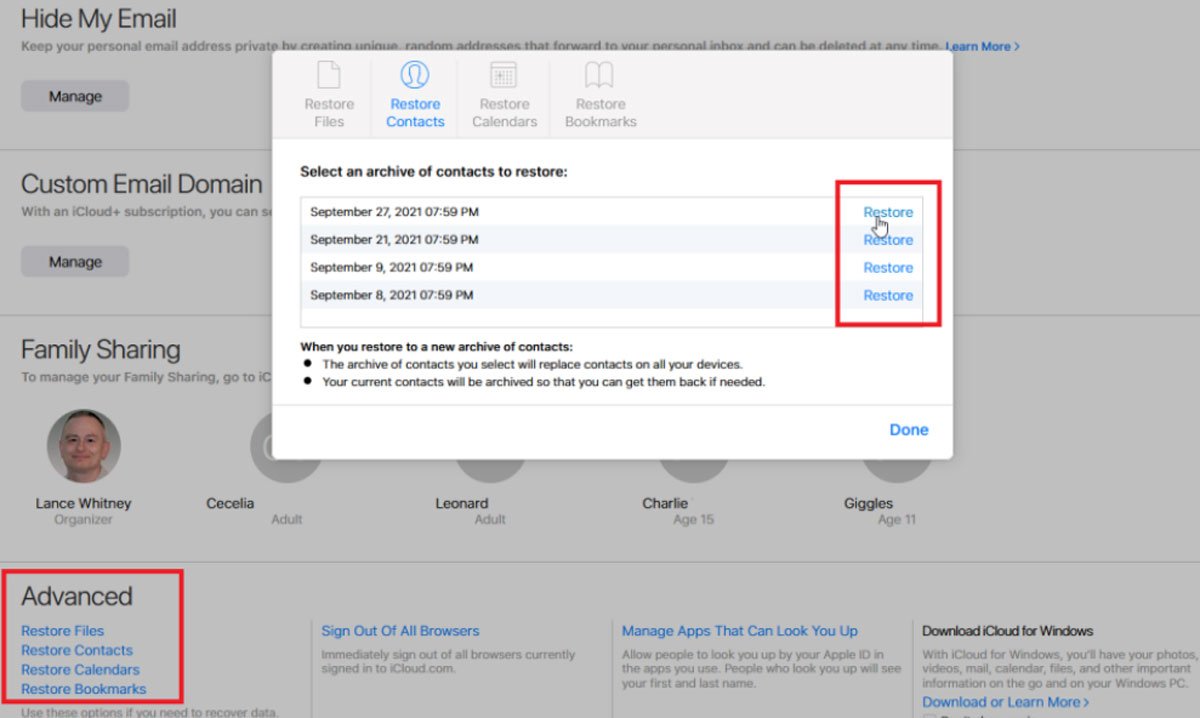
- Click on Restore Contacts and choose the contacts you want to restore.
- Tap Restore and wait till the recovery completes.
Note: This data recovery method does not affect photos, messages, or apps stored on your iPhone.
Method 02: Recover Contacts from iCloud Backup
If you cannot find your contacts using the archive method, you may need to restore your iPhone from an iCloud backup. It is important to note that this method will erase your entire device before restoring. Follow the below steps to recover deleted iPhone contacts using iCloud backup:
- Launch iCloud and then tap General.
- Scroll down and click “Transfer or Reset iPhone.”
- Select Erase All Content and Settings.
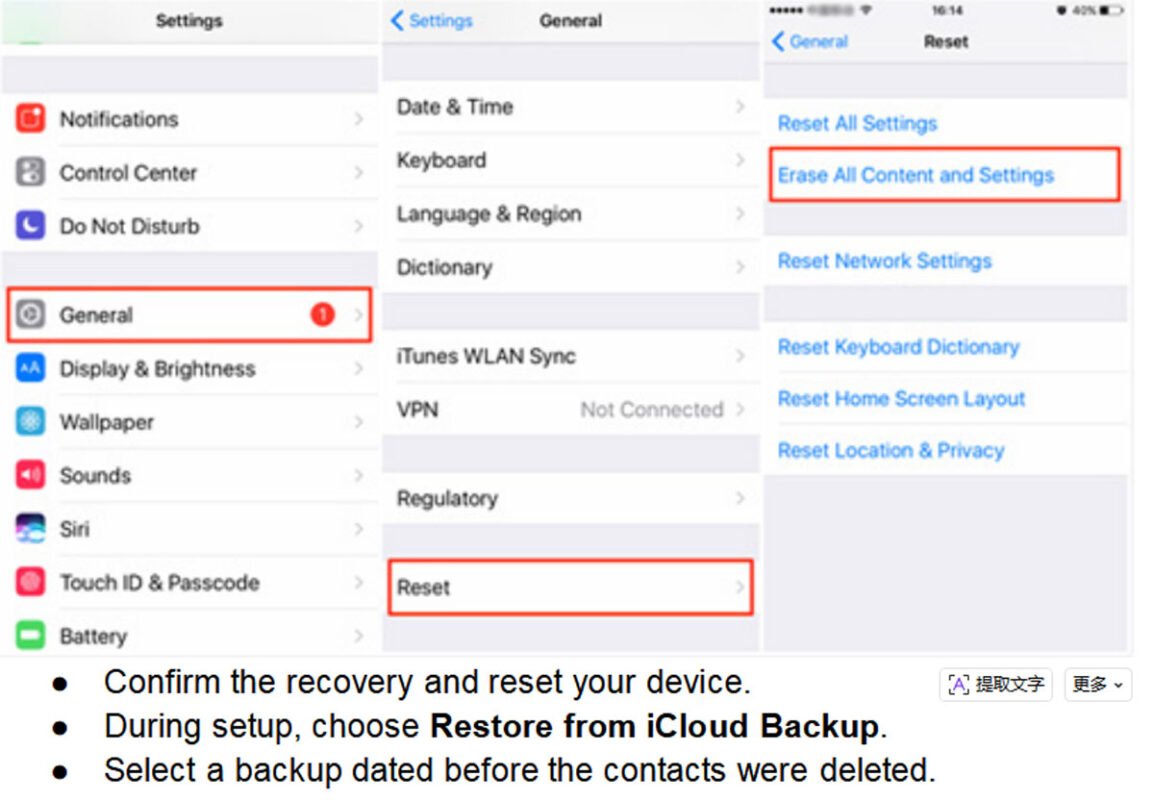
- Confirm the recovery and reset your device.
- During setup, choose Restore from iCloud Backup.
- Select a backup dated before the contacts were deleted.
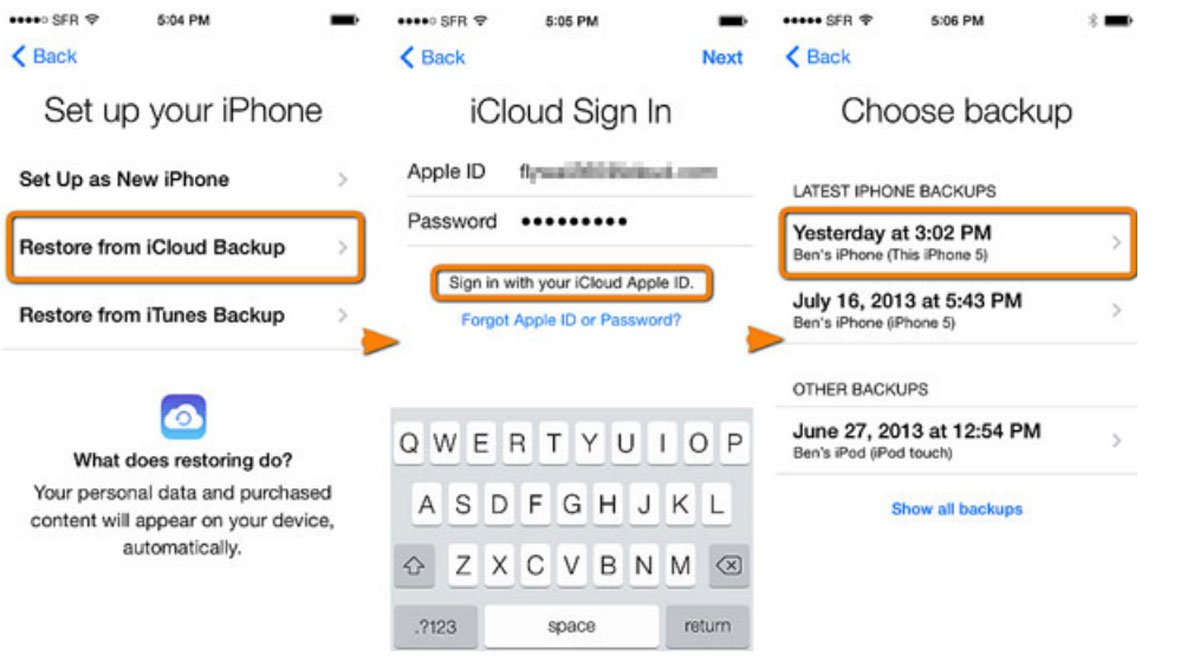
Once the process completes, your iPhone will restore everything – including contacts, apps, photos, and messages.
Method 03: Retrieve Deleted Contacts Using Finder or iTunes Backup
Along with iCloud backup, you can use iTunes or Finder backup utility to recover your deleted contacts. All you have to do is:
- Connect your iPhone to the computer using a compatible USB cable.
- Now, launch Finder (on Mac) or iTunes (on Windows or older macOS versions).
- From the application sidebar or device list, choose your iPhone.
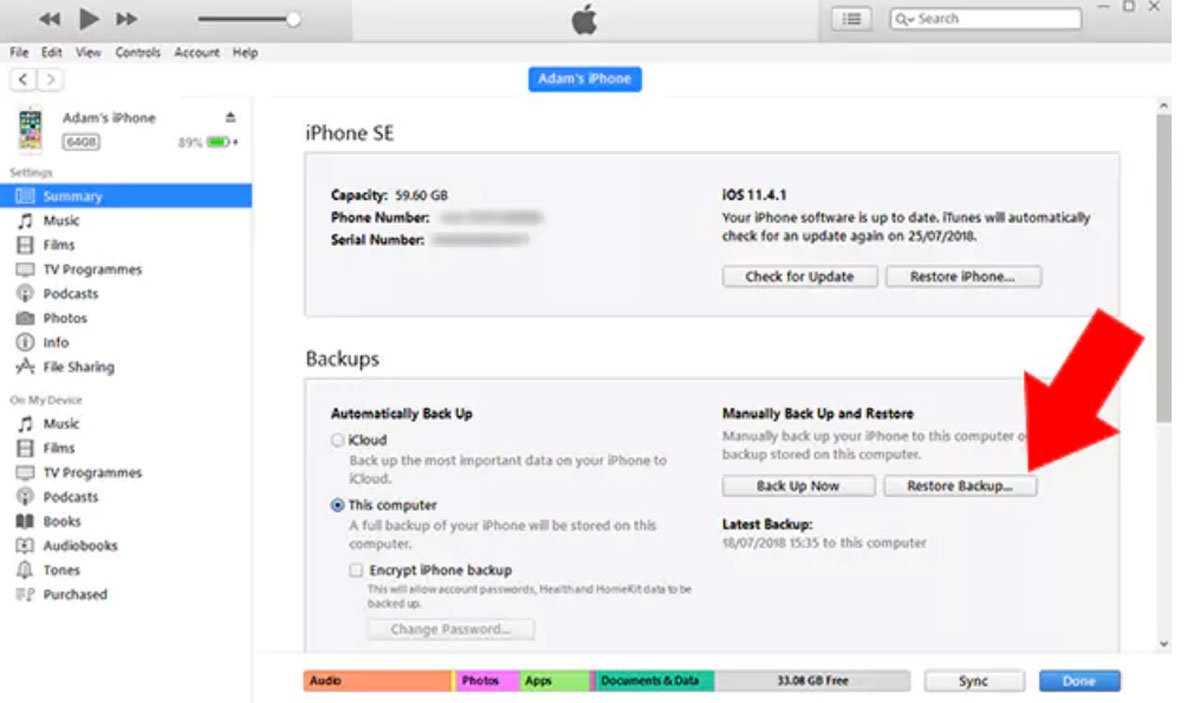
- Click the “Restore Backup” option within the device summary settings panel.
- Select the backup version before your contacts were deleted.
- Confirm by clicking “Restore Backup” and wait until the process completes fully.
How to Retrieve Deleted Contacts on iPhone Without Backups?
If you don’t have any of the aforementioned backup of your lost contact, you can use professional iPhone data recovery software to restore it. Tools like Stellar Data Recovery for iPhone are designed to recover your lost contacts, photos, videos, messages, and other files from your iPhone in a few simple clicks. This software supports the recovery of files deleted due to accidental deletion, formatting, device failures, and many other reasons.
The Stellar Data Recovery for iPhone software lets you preview the recoverable files before saving them on your device. This software is available in multiple versions, varying in features and prices. You can review and compare the features of these versions, then choose the one that best fits your requirements.
You can use this software to recover deleted files in three simple steps, i.e., Select, Scan, and Recover. Let’s explore the recovery steps in detail:
Step 1: Download and install the Stellar Data Recovery for iPhone software on your computer. Also, connect your iPhone to that PC.
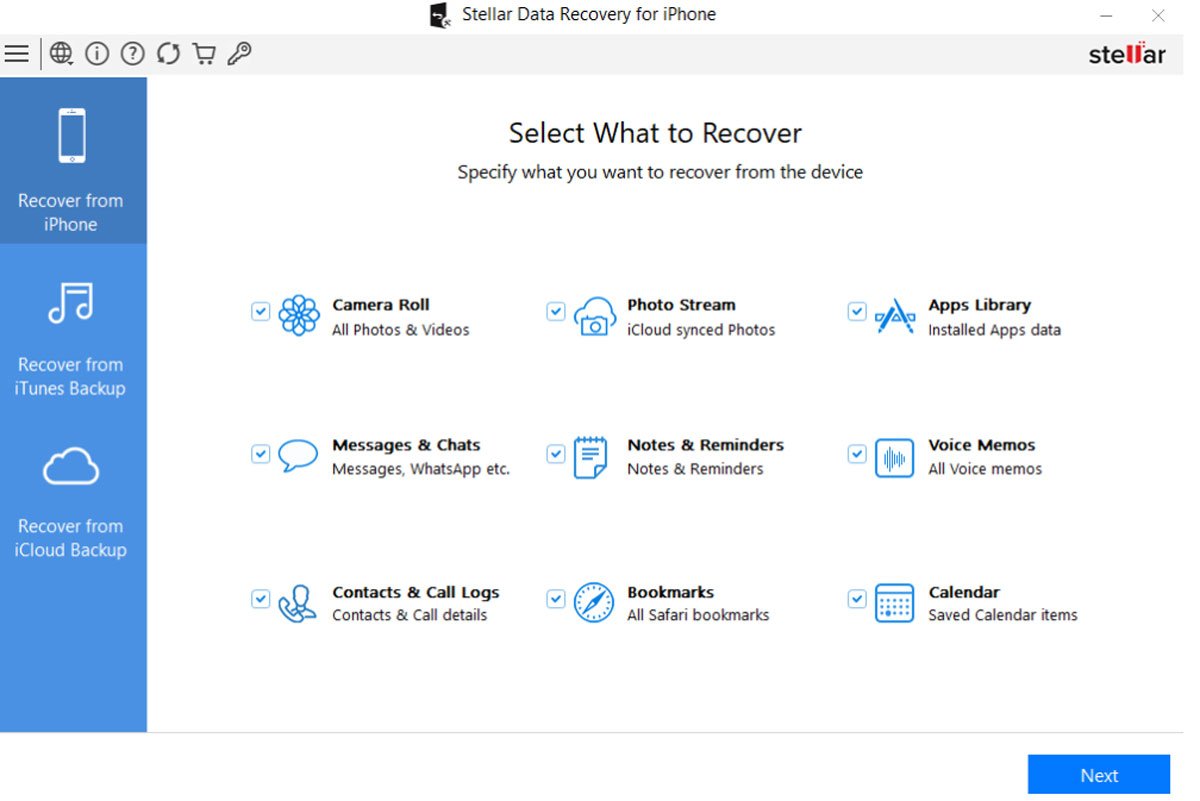
Step 2: Launch this software and from the homepage, select Recover from iPhone from the left-bar and choose the type of file you want to restore (to recover contacts, select Contacts & Call Logs). Click Next to continue.
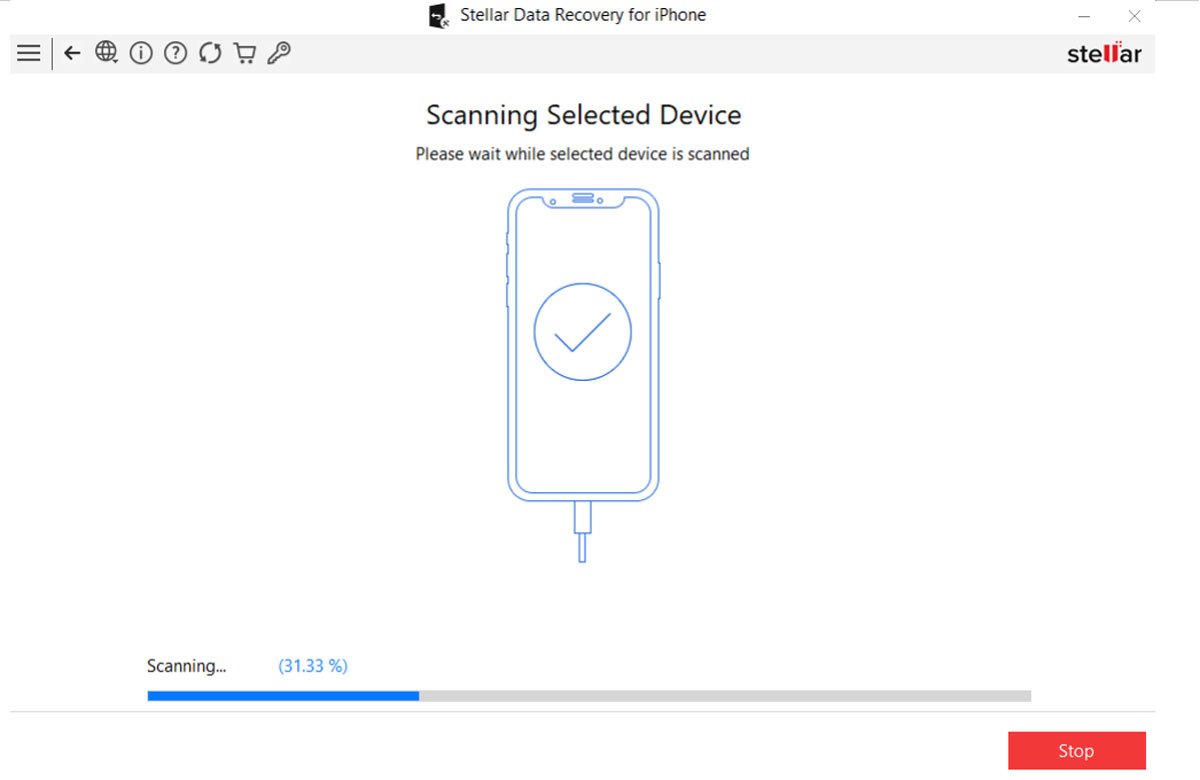
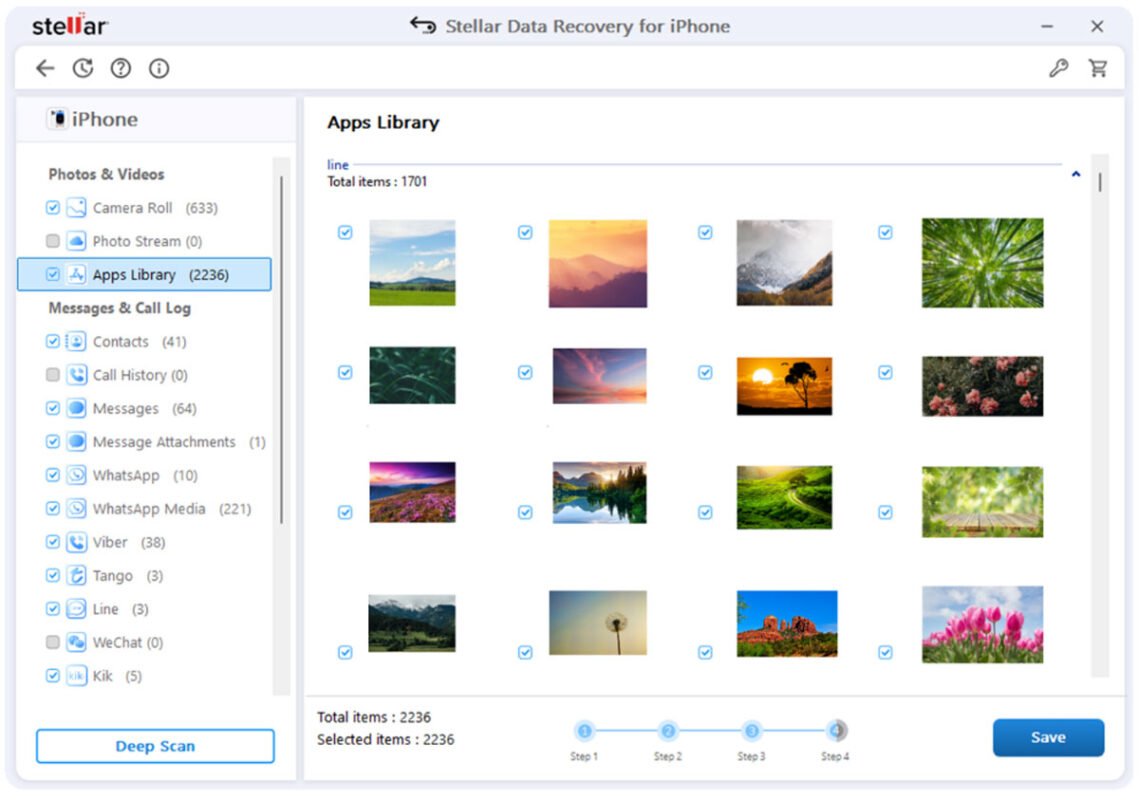
Step 3: Click Scan to begin scanning your iPhone for deleted contacts. Once done, preview the recoverable contacts and select the one you want to restore.
Step 4: Click Save to save selected contacts back to your computer. You can then re-import the saved contacts back to your iPhone.
Wrapping Up
Restoring deleted contacts on your iPhone can be challenging, but thanks to the previously created backups, which make recovery quite easy and simple. The safest and most recommended method is restoring contacts directly from iCloud without erasing your device. If that doesn’t work, you can check other backup options such as iCloud, iTunes, or Finder to get your lost contacts back. And if no backups exist, third-party recovery tools such as Stellar Data Recovery for iPhone may offer a last resort.
The best strategy, however, is prevention. Keep iCloud Contacts enabled, back up regularly, and export important contacts periodically. With the right approach, recovering deleted contacts from the iPhone has become very simple and quick.
Frequently Asked Questions (FAQs)
Can I recover permanently deleted contacts on iPhone?
Yes, restore permanently deleted contacts from a backup if available, or use third-party tools such as Stellar Data Recovery for iPhone if no backup exists.
Is third-party iPhone data recovery software really safe?
Professional data recovery tools like Stellar are 100% safe and secure when downloaded from official sources and used properly.
How long does iCloud keep deleted contacts?
iCloud usually stores deleted contact archives for up to 30 days, allowing users time to restore lost contacts easily.