




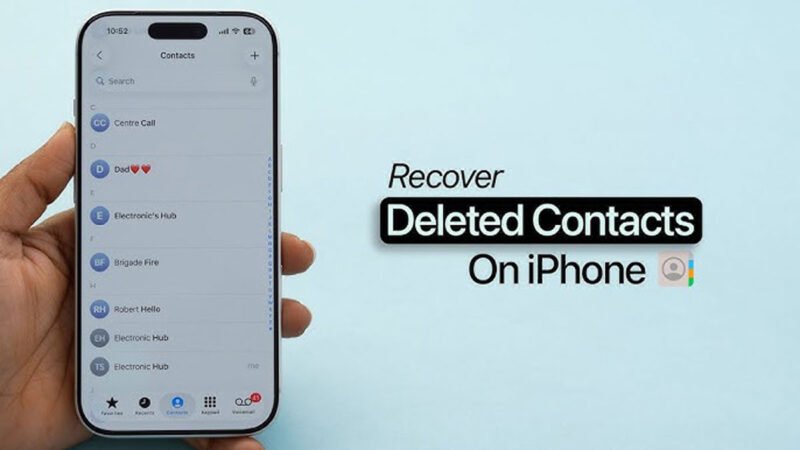
Accidentally deleting contacts on your iPhone is more common than you might think — and the panic that follows can be overwhelming. Whether it happened while tidying up your address book, after a failed iOS update, or following an unexpected factory reset, losing important phone numbers and contact details can disrupt both your personal and professional life.
The reassuring news is that deleted contacts are often recoverable. Apple provides several built-in methods to restore lost contacts through iCloud, iTunes, Finder, and synced email accounts. When none of these options are available, dedicated data recovery software for iPhone can step in to retrieve what seems permanently lost. This step-by-step guide walks you through every available method so you can recover deleted contacts from iPhone quickly and safely.
Why Do Contacts Get Deleted on iPhone?
Understanding the root cause of your contact loss can help you choose the most effective recovery method. Here are the most common reasons contacts disappear from an iPhone:
- Accidental Deletion: Tapping “Delete” while editing, merging duplicates, or managing contacts is one of the leading causes of contact loss.
- iOS Update Issues: A software update or downgrade that fails mid-process can sometimes wipe or corrupt stored contacts.
- Factory Reset: Resetting your iPhone to factory settings erases all data, including contacts, if a prior backup was not created or selected.
- Signing Out of iCloud: Logging out of your Apple ID removes all iCloud-synced contacts from the device, making them appear deleted.
- iCloud Sync Conflicts: Misconfigured sync settings or interrupted iCloud syncs can cause contacts to vanish across all linked devices.
- Third-Party App Interference: Some apps with contact access permissions can inadvertently overwrite or delete contact data.
How to Get Back Deleted Contacts on iPhone Using Backups
If you had a backup in place before the contacts were deleted, recovery is straightforward. Below are the most reliable backup-based methods:
Method 01: Restore Deleted Contacts from iCloud
iCloud is Apple’s native cloud service and typically the first place to check for deleted contacts. If iCloud Contacts sync was enabled on your device, follow these steps:
- Open a web browser on your computer or iPhone and go to com.
- Sign in with the Apple ID linked to your iPhone.
- Click on your profile icon and open Account Settings.
- Scroll down to the Advancedsection and click Restore Contacts.
- A list of previously saved contact archives will appear. Select a version dated before the contacts were deleted.
- Click Restoreand confirm the action.
iCloud will now sync the restored contacts back to your iPhone automatically within a few minutes.
Method 02: Recover Contacts Using iTunes or Finder Backup
If you back up your iPhone to a computer via iTunes (Windows or older macOS) or Finder (macOS Catalina and later), you can restore contacts from those local backups:
- Connect your iPhone to your computer using an original USB cable.
- Open iTuneson Windows or older macOS, or Finder on macOS Catalina and above.
- Select your iPhone when it appears in the sidebar.
- Click Restore Backupand choose the backup created before your contacts went missing.
- Click Restoreand wait for the process to complete.
Your iPhone will restart once the restoration is complete, and the deleted contacts should reappear in the Contacts app.
Note: Restoring from an iTunes or Finder backup replaces all current iPhone data with the backup version. Make sure the selected backup predates the contact deletion.
Method 03: Recover Contacts via Synced Email Accounts
If you have synced your iPhone contacts with an email service such as Gmail, Outlook, or Yahoo, those contacts may be recoverable directly through the account:
- Open Settingson your iPhone.
- Go to Mail> Accounts and select the relevant email account.
- Make sure the Contactstoggle is switched ON.
- If the contacts are stored on the email server, they will automatically resync to your iPhone.
Note: Gmail users can also visit contacts.google.com, open the Trash folder, and restore recently deleted contacts from there.
Method 04: Check Recently Deleted in iPhone Contacts App
Starting with iOS 16, Apple introduced a Recently Deleted folder inside the Contacts app, similar to what exists for Photos. If you’re on iOS 16 or later, this is the quickest fix:
- Open the Contactsapp on your iPhone.
- Tap Listsin the top-left corner.
- Scroll down and tap Recently Deleted.
- Select the contacts you want to restore and tap Recover.
Note: Contacts remain in the Recently Deleted folder for 30 days before being permanently removed.
How to Recover Deleted iPhone Contacts Without a Backup
If none of the above backup options are available, do not lose hope. You can use professional data recovery software for iPhone such as Stellar Data Recovery for iPhone to retrieve deleted contacts directly from your device. This powerful tool performs a deep scan of your iPhone’s internal storage and locates deleted contact data even when no backup exists.
Key Features of Stellar Data Recovery for iPhone
- Recovers deleted contacts, messages, photos, videos, and more from iPhone storage and backups.
- Offers a preview of recoverable contacts before you commit to restoring them.
- Saves recovered contacts in popular formats including CSV, VCF, and HTML.
- Fully encrypted recovery process — your data is never shared with third parties.
- Compatible with iPhone 17/16/15/14/13/12 and all earlier models.
- Beginner-friendly interface with a simple three-step recovery flow: Select, Scan, and Recover.
Steps to Recover Deleted Contacts Using Stellar Data Recovery for iPhone
- Step 1: Download and install Stellar Data Recovery for iPhone on your Windows PC or Mac. Launch the software and connect your iPhone via USB cable.
- Step 2: Select Recover from iPhoneon the home screen and choose Contacts & Call Logs as the data type to recover.
- Step 3: Click Scan. The software will perform a deep scan of your device and display all recoverable contacts.
- Step 4: Preview the recovered contacts, select the ones you need, and click Save. Choose a location on your computer to store the recovered file.
How to Prevent Losing iPhone Contacts in the Future
Once you’ve recovered your contacts, take these proactive steps to protect them going forward:
- Enable iCloud Contacts Sync: Go to Settings > [Your Name] > iCloud and toggle Contacts ON to keep them automatically backed up and synced.
- Schedule Regular iTunes/Finder Backups: Connect your iPhone to your computer periodically and create a local backup to capture a recent snapshot of your data.
- Sync with Email Accounts: Keep contact sync enabled for Gmail, Outlook, or Yahoo as a secondary safety net.
- Export Contacts as VCF: Periodically export your contacts as a VCF file and store it on your computer or cloud drive for an extra layer of protection.
- Be Careful with Third-Party Apps: Only grant contact access to trusted apps to prevent accidental overwriting or deletion.
- Keep iOS Updated: Always install the latest iOS updates to benefit from bug fixes that can prevent data loss issues.
Wrapping Up
Getting back deleted contacts on an iPhone is entirely achievable with the right approach. Start with Apple’s built-in recovery options — the Recently Deleted folder, iCloud, iTunes, Finder, or synced email accounts — as these are quick and free. If no backup is available, dedicated data recovery software for iPhone like Stellar Data Recovery for iPhone provides a reliable last resort for retrieving permanently deleted contacts.
The most important rule: act fast. The sooner you stop using your iPhone after contact loss, the better your chances of successful recovery. Pair that with the preventive measures above, and you’ll never have to scramble for a lost contact again.
Frequently Asked Questions (FAQs)
Can I recover permanently deleted contacts on iPhone without a backup?
Yes. Using professional data recovery software for iPhone such as Stellar Data Recovery for iPhone, you can perform a deep scan of your device’s storage to locate and retrieve deleted contacts even when no backup exists, as long as the data has not been overwritten by new files.
How long do deleted contacts stay in the Recently Deleted folder?
On iPhones running iOS 16 or later, deleted contacts are kept in the Recently Deleted folder for up to 30 days. After that period, they are permanently removed from the folder and can no longer be restored through this method.
Will restoring from an iTunes backup delete my current iPhone data?
Yes. Restoring from an iTunes or Finder backup replaces all current data on your iPhone with the contents of the selected backup. It is advisable to create a fresh backup of your current device before proceeding, in case you need to revert.
Why did my iPhone contacts disappear after an iCloud sign-out?
iCloud-synced contacts are stored on Apple’s servers and are only mirrored to your device while you are signed in. When you sign out of iCloud, those contacts are removed from your iPhone. Signing back into the same Apple ID and enabling Contacts sync will restore them automatically.
Is iPhone data recovery software safe to use?
Yes, reputable tools like Stellar Data Recovery for iPhone use an encrypted, read-only scanning process that does not modify, overwrite, or share your personal data. Always download from the official website to ensure you are using a legitimate, secure version of the software.
Can I recover contacts if my iPhone is broken or won’t turn on?
If your device is non-functional, your best options are recovering from an iCloud backup via iCloud.com on another device, or from an iTunes/Finder backup on your computer. Some data recovery software also supports extraction from backup files without needing the physical device to be operational.